

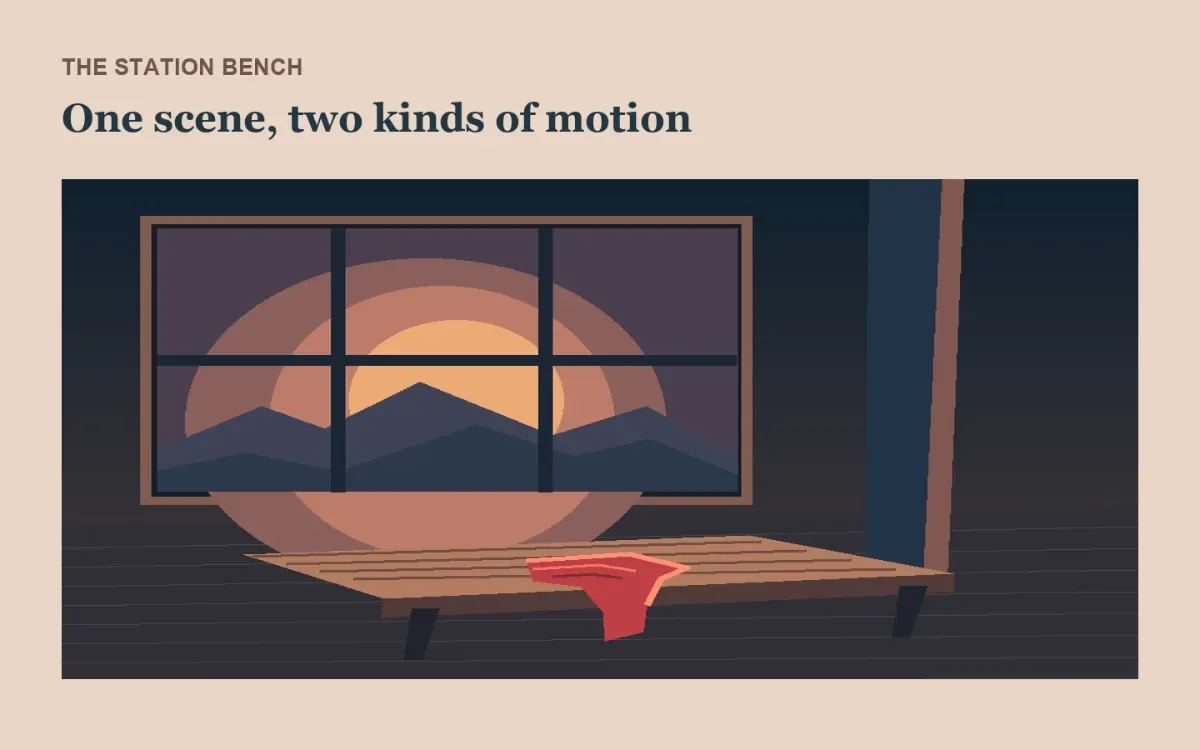
A red scarf flutters on a station bench. The window behind it drifts sideways. If you asked for a fixed shot, that drifting window tells you the clip moved the camera as well as the scarf. A prompt that says “make it move slowly” leaves both possibilities open.
Start by choosing the movement that should do the work. A scarf lifting in a draft gives the eye a small detail to follow. A slow push toward a still scarf draws attention to the object itself. Both could accompany the same music, but they make different shots.
Keep the scene constant and change the movement
Use one subject, one location and one visual detail to check in the preview. In this example, the subject is a red scarf, the location is a quiet station and the check is a window grid behind the bench. The two prompts below describe the same imagined scene.
A. Let the scarf move
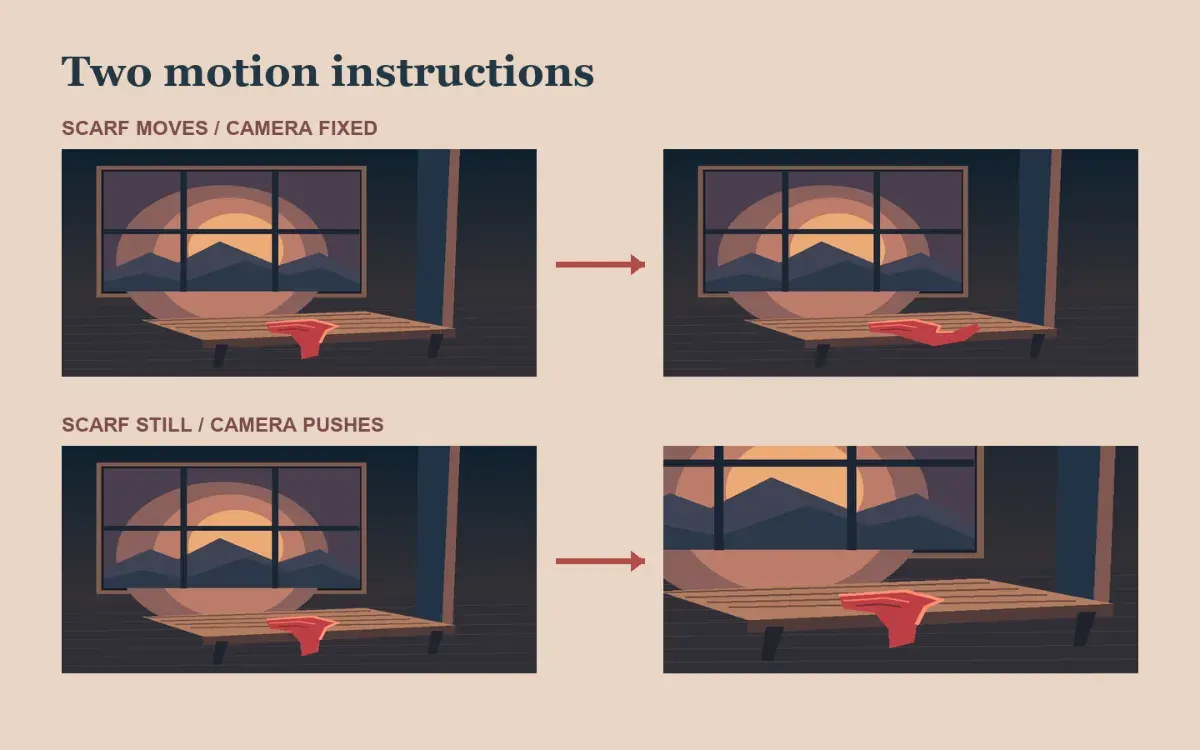
A red scarf hangs over a wooden station bench beside a tall window at dusk. One loose end lifts gently, then settles. Keep the camera fixed at bench height. The window grid, bench and background pillar stay in the same position. Keep the scarf visible throughout.
A fixed frame makes it easier to see how far the scarf moves and whether it settles. This option works when the detail itself is the reason to watch. If the free end bends into a different shape or another object starts moving, the wider scene gives you context for spotting it.
B. Let the camera move
A red scarf rests on a wooden station bench beside a tall window at dusk. The scarf stays still. The camera makes one slow, straight push toward the scarf from bench height. End with the fabric filling more of the frame. Keep the bench and window geometry consistent.
A push changes the framing. The scarf should take up more of the picture by the end while keeping its shape. If the fabric starts fluttering too, the viewer has two things to track. Decide which one belongs in the shot before changing the prompt.
Review the landmarks before changing the prompt
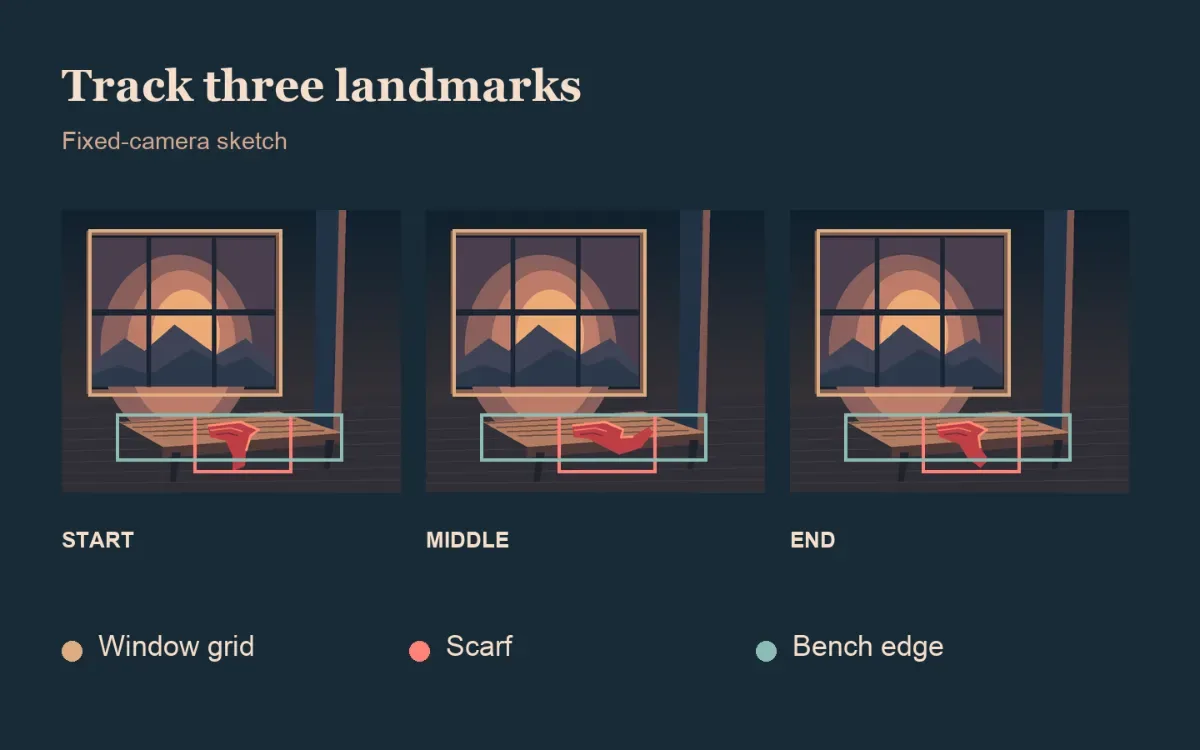
Look at the first, middle and last parts of the clip. In the fixed shot, the window and bench should stay in place while the scarf changes. In the push, look for a gradual tightening of the frame. A sudden jump, a warped pillar or an entirely new window makes the motion harder to read.
Watch again at normal speed. A brief change that barely registers in a still may distract when it plays over the music. When revising, change one instruction. If the first shot drifts, strengthen the fixed framing instruction before changing the light, the scarf and the setting. If the push is too fast, ask for a smaller change in framing while keeping the rest of the prompt.
Try one prompt, then edit with your own song
Disclosure: This guide is published by MusicMaker and includes our own tool.
For a short visual test, the MusicMaker free short music video generator describes free, no-signup MiniMax H3 generation from a text prompt or both a start and an end frame. The page lists five-second, 480p clips and 9:16, 16:9 and 1:1 ratios. Unlimited generations are described alongside one request at a time. Keep a copy of each prompt and download the takes you want to edit.
If you want to check how generated ambient sound might sit beside your song, the Flaq AI free video generator describes video with built-in audio. For a separate text-or-two-frame workflow, the AI VideoWeb free video generator lists a five-second 480p output. These are product-page descriptions, with no side-by-side results measured here.
Put the selected clip and a song you have permission to use on separate tracks in your editor. Listen for the part of the song that should draw attention, then move the visual to fit. If the clip contains sound that competes with the song, mute that track and check the export. The prompts and station sketches show a method for planning and checking a shot.